
The Quick Answer: Start With Linux Support, Not the AI Label
The phrase AI browser for Linux covers several different products. A browser may ship a native Linux package and include an assistant, or it may be a normal Linux browser that works with an extension or a separate web-based AI service. A product can also advertise an agent workflow while supporting only Windows, macOS, or a hosted session. Those are different choices with different privacy and maintenance costs.
For a daily Linux setup, first confirm the distribution and installer format. Ubuntu and Debian users often look for a .deb package, Fedora users may need .rpm, Arch users may rely on a community package, and some projects offer AppImage, Flatpak, or a tarball. Then check whether the browser behaves correctly on Wayland or X11, whether your extensions work, and whether the AI feature is available in your region and language.
The best Linux browser for AI work is the one that matches the task. Use a lightweight assistant for page summaries and writing. Use a stronger research workflow when you need cross-tab context. Use an agent only when the product shows its plan, limits its permissions, and pauses before downloads, account changes, payments, publishing, or other irreversible actions.
What Counts as an AI Browser on Linux?
A useful definition has three parts: the browser can access some browser context, an AI system interprets that context, and the interface lets you understand or control the next step. A chatbot opened in a separate tab can still be useful, but it is not the same as a browser assistant that can read a selected page, compare tabs, or prepare a browser action.
Linux users should separate assistance from agency. Assistance includes asking questions about a page, summarizing an article, translating a selection, drafting text, or organizing tabs. Agency means the system can navigate, click, type, extract information, or move through several steps. The second category needs stronger session isolation, logs, and approval controls because an agent can misunderstand an instruction or follow malicious text on a page.
A dedicated Linux build can also change the trust model. A native package may integrate better with the desktop, but it can ask for broader filesystem or keyring access. A browser extension may be easier to remove, but it inherits the current profile's cookies, history, tabs, and permissions. A hosted browser may isolate the session, but page data travels to another service. Compare the boundary, not just the model name.
Linux-native assistant
A browser package for Linux with built-in summaries, search help, writing support, or page questions. Verify release channels and supported distributions.
Extension-based workflow
A focused assistant inside Firefox, Chrome, Chromium, Brave, or another browser. Review extension permissions and the profile it can access.
Agent or hosted session
A higher-autonomy browser workflow that can plan or perform steps. Require a visible plan, a narrow session, and human approval before side effects.
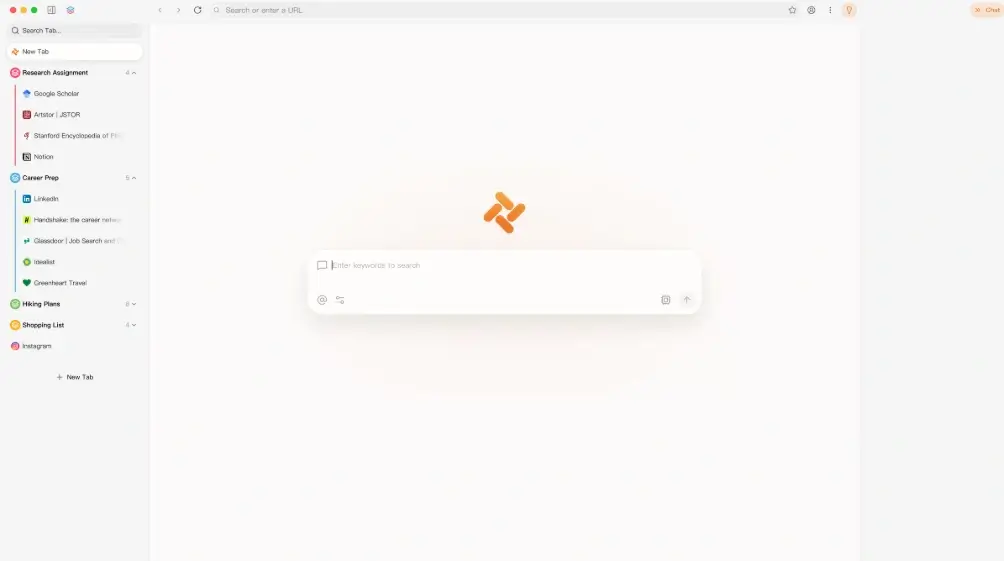
Linux Browser Options With AI Workflows
There is no single winner for every Linux distribution. Firefox is a strong baseline when you want a familiar open web browser and a carefully selected extension workflow. Chrome and Chromium are useful when extension compatibility, Google account integration, or web-app support matters. Brave adds a privacy-oriented browser with an optional assistant, while Vivaldi offers a highly configurable Chromium-based workspace.
A product with the words AI browser in its title may still be a poor Linux choice if it has no native build, no clear package source, or no way to disable page-context access. BrowserOS, Zeed, and other newer projects should be treated as candidates to verify rather than permanent recommendations. Check their current release page, supported architecture, update cadence, and whether the Linux build is stable before moving private work into it.
Use the table as a starting shortlist. The AI capability column describes a workflow category, not a guarantee that every feature is available on every distribution. Feature names, pricing, and platform support change quickly, so confirm the official documentation before installing.
| Option | Best fit | AI workflow | Linux check |
|---|---|---|---|
| Firefox | A stable baseline with selected extensions | Page help, writing, research extensions | Confirm extension permissions and Wayland/X11 behavior |
| Chrome or Chromium | Web apps, Google services, and broad extension support | AI side panels, web assistants, and extensions | Check the official Linux package and architecture |
| Brave | Privacy-aware browsing with optional AI help | Leo-style summaries and page assistance | Review assistant settings and the Linux release channel |
| Vivaldi | Power users who want tabs, panels, and customization | Extensions and web-based AI tools | Verify package updates and desktop integration |
| New AI-native projects | Early adopters willing to test releases | Dedicated research or agent workflows | Never assume Linux support from a Windows or macOS page |
| Tabbit Browser | AI-assisted desktop workflows on supported platforms | Task execution, research, and no-code automation | This site verified Windows/macOS v1.0.29 files, not a Linux installer |
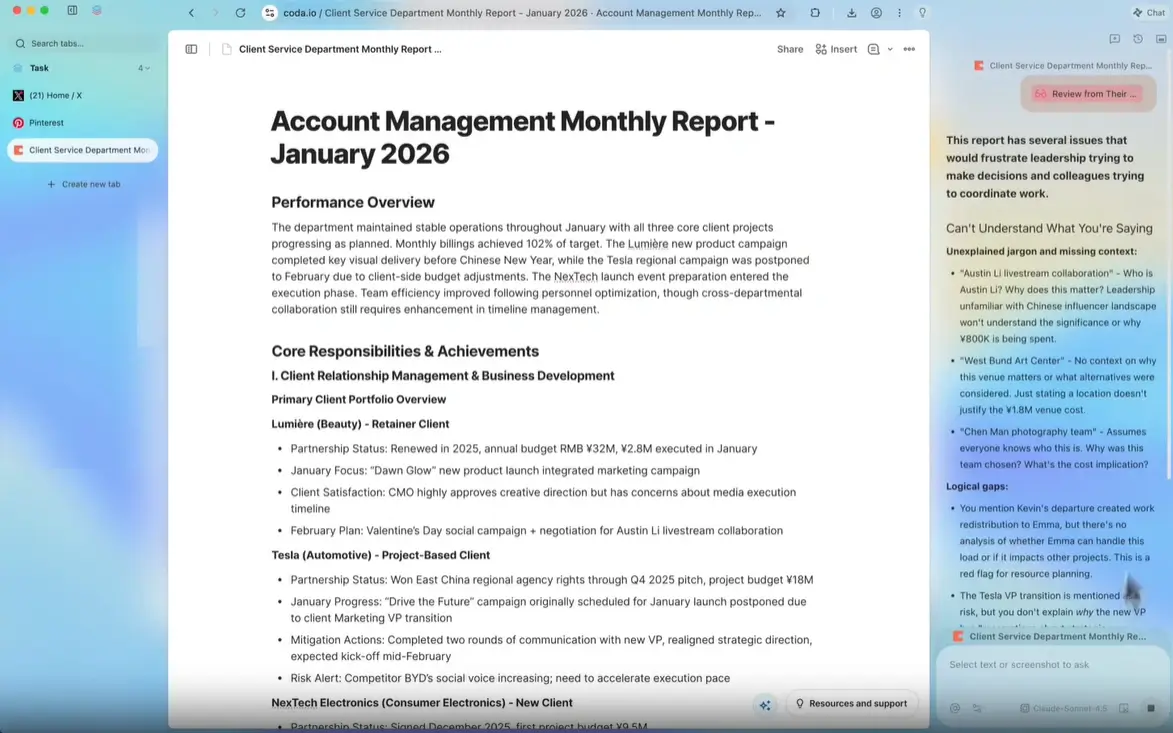
Compatibility: Distribution, Package, and Desktop Session
Linux compatibility is more than a download button. Check whether the project publishes a package for your distribution family, whether the architecture is x86_64 or ARM64, and whether the package is signed or backed by a trustworthy repository. A tarball may run on several distributions but can make updates, sandboxing, desktop menus, and uninstalling less predictable.
Wayland and X11 can affect screen capture, window focus, automation, clipboard access, and extension behavior. If an AI browser needs to observe a page or interact with a desktop surface, test it with a harmless public page before granting access to private sessions. A browser that can read a page is not necessarily allowed to control every window, and those permissions should be visible.
Also check the browser profile. A Linux package can be technically compatible while the workflow is still wrong for your risk level. Keep work, personal accounts, and agent experiments in separate profiles when possible. Do not use a test profile with saved payment methods or production cookies.
| Check | Questions to answer | Why it matters |
|---|---|---|
| Distribution | Ubuntu/Debian, Fedora/RHEL, Arch, or another base? | Determines package source, dependencies, and update path |
| Architecture | x86_64, ARM64, or another target? | A mismatched build may fail or lack sandbox support |
| Package format | .deb, .rpm, Flatpak, AppImage, or tarball? | Changes updates, permissions, integration, and removal |
| Display session | Wayland, X11, or a mixed desktop? | Can affect automation, focus, capture, and clipboard behavior |
| Profile boundary | Which cookies, tabs, history, and extensions are present? | AI context and agent actions should not inherit unnecessary secrets |
Privacy and Agent Controls to Check
An AI browser can be convenient because it sees more context than a normal search box. That context may include page text, selected content, open tabs, clipboard data, downloads, account state, or text shown after you sign in. Before using a new Linux AI browser, find out which data stays local, which data is sent to a model provider, how long prompts and page content are retained, and whether you can delete or limit the history.
Untrusted page content is another risk. A page can contain instructions aimed at an AI agent, a misleading button, or a prompt injection hidden in ordinary text. Keep public research separate from sensitive accounts, and require a human checkpoint before the agent sends a message, uploads a file, purchases something, changes a setting, downloads an installer, publishes content, or deletes data.
A privacy-first setup does not mean refusing all AI. It means selecting the smallest context that solves the task. Use selected pages instead of unrestricted browsing, a separate profile instead of a personal session, and a local or clearly governed model path when the data requires it.
- Check page accessConfirm whether the assistant can read the current page, other tabs, history, clipboard, downloads, or account context.
- Review data routingLook for local processing, model providers, retention, training use, memory, and deletion controls.
- Limit the sessionUse a clean profile, selected domains, and public or reversible work while you test the browser.
- Require approvalPause before sending, paying, uploading, downloading, publishing, changing an account, or deleting anything.
- Keep recovery possibleUse logs, reversible actions, and a clear way to revoke access or close the session.
How to Set Up an AI Browser Safely on Linux
Start at the official product page, not a generic download portal. Verify the domain, package name, architecture, checksum or signature when published, and the release notes. A page that asks you to disable security software, install an unrelated downloader, or run a suspicious shell command is a reason to stop. Linux users should prefer a signed repository or a clearly documented first-party package when one is available.
Before moving real work into the browser, create a low-risk test. Ask it to summarize a public article, compare two public documentation pages, or prepare a form without submitting it. Watch the network, permissions, and action log if the product provides them. Do not begin with banking, healthcare, payroll, production administration, customer records, or a profile full of valuable cookies.
If the browser is an early release, treat updates as part of the test. Read release notes, keep a fallback browser, and know how to remove the package and revoke extension or account access. A good Linux AI browser should make it easy to understand what it can see and what it is about to do.
- Verify the sourceUse the publisher's official page and compare the exact product name, package URL, version, and architecture.
- Install the smallest buildPrefer the documented package or repository and avoid reuploaded mirrors, wrappers, and unrelated bundles.
- Create a clean profileDo not let an experimental AI browser inherit personal cookies, saved passwords, payment methods, or production sessions.
- Run a harmless taskTest public reading, comparison, or drafting first, and inspect the evidence and action plan before approving anything.
- Document the rollbackKeep a fallback browser and know how to revoke permissions, remove the package, clear data, and undo a workflow.
Tabbit Browser Status for Linux Users
Tabbit Browser is relevant to this topic because it presents an AI-native workflow around background tasks, research, multi-model access, and natural-language automation. Those capabilities are useful comparison points, but they should not be confused with Linux availability. A product can be a good AI browser for Windows or macOS while still being unavailable on Linux.
On August 22, 2026, this site's freshness check verified the first-party Tabbit release paths for Windows x64, macOS Apple Silicon, and macOS Intel. All three v1.0.29 files returned HTTP 200 with executable or disk-image MIME types. The check did not find a verifiable Tabbit Linux installer, so this guide does not offer a Linux download button or claim that Tabbit currently supports Linux.
If you are evaluating Tabbit from Linux, use the official product and release pages for the latest platform statement, keep the experiment outside sensitive accounts, and do not install a file merely because a search result calls it an international edition. Platform support, package authenticity, and AI permissions are separate checks.
The Bottom Line
The strongest AI browser for Linux is not necessarily the one with the most autonomous demo. It is the one that installs through a trustworthy path, works with your distribution and desktop session, keeps page context within an understandable boundary, and gives you a chance to review risky actions.
For many users, Firefox, Chrome or Chromium, Brave, or Vivaldi provide a dependable Linux foundation, with AI added through optional built-in features, extensions, or a separate service. New AI-native products can be worth testing, but verify the Linux build, update path, permissions, and recovery behavior before adopting one for daily work.
Keep the main conclusion in ordinary text: Linux support is a platform fact, AI capability is a product feature, and safe automation is a permission decision. Check all three independently before you call a browser the right AI browser for Linux.
FAQ
Short answers about Linux compatibility, AI browser features, and safer setup.
Is there an AI browser for Linux?
Yes, but the phrase can describe different setups: a Linux browser with built-in AI, a browser plus a carefully selected extension, or a hosted AI browser workflow. Check the exact Linux package and feature availability instead of assuming that a Windows or macOS product also runs on Linux.
Is Chrome browser available on Linux?
Google publishes Chrome for Linux, and Chromium-based options are also common. Use the official Linux download or repository documentation, select the correct architecture, and verify updates rather than downloading a reuploaded package.
What browsers are available on Linux?
Firefox, Chrome, Chromium, Brave, Vivaldi, and other projects offer Linux builds or packages, although support differs by distribution and architecture. The best choice depends on extensions, updates, privacy controls, performance, and the AI workflow you actually need.
Can I use an AI browser on Ubuntu or Linux Mint?
Often yes when the product publishes a compatible package or runs as a web service, but Ubuntu and Linux Mint do not guarantee compatibility with every AI-native browser. Check the package format, dependencies, display session, and release notes before using a private profile.
When will DuckDuckGo Browser be available for Linux?
Availability can change, and this page does not promise a release date. Check DuckDuckGo's official product and help pages for the current platform list; until a first-party Linux build exists, do not use a third-party installer that claims to be official.
Is Tabbit Browser available for Linux?
This site's August 22, 2026 check verified Tabbit v1.0.29 Windows and macOS release files, but it did not verify a Tabbit Linux installer. Treat Linux support as unconfirmed and check the official Tabbit platform statement before downloading anything.
Should I give an AI browser access to my Linux accounts?
Start with public, reversible tasks and a clean profile. Keep banking, healthcare, payroll, production administration, customer data, and saved credentials outside an AI-agent session until its permissions, retention, logs, and approval controls are clear.
Official sources to check
Platform support and AI features change. Use first-party pages to confirm the current Linux package, release channel, and privacy controls.
- Google Chrome for Linux — Official Chrome Linux download and platform information.
- Mozilla Firefox for Linux — Official Firefox Linux installation and support information.
- Brave Browser for Linux — Official Brave Linux installation instructions and repository guidance.
- Vivaldi download — Official Vivaldi download page for supported desktop platforms.
- Tabbit Browser official site — Use the publisher's current product and platform statement before installing.
- Tabbit release host — First-party release host used for the verified Windows and macOS files discussed above.